
Keep your legal and business documents organised, versioned, and always up to date.
Document Manager is a lightweight yet powerful WordPress plugin for businesses that need to maintain a transparent, auditable record of important documents. Whether you publish Terms & Conditions, a Privacy Policy, a cookie statement, service guarantees, or any other versioned document — Document Manager gives you a single, structured place to manage them all.
Key Features
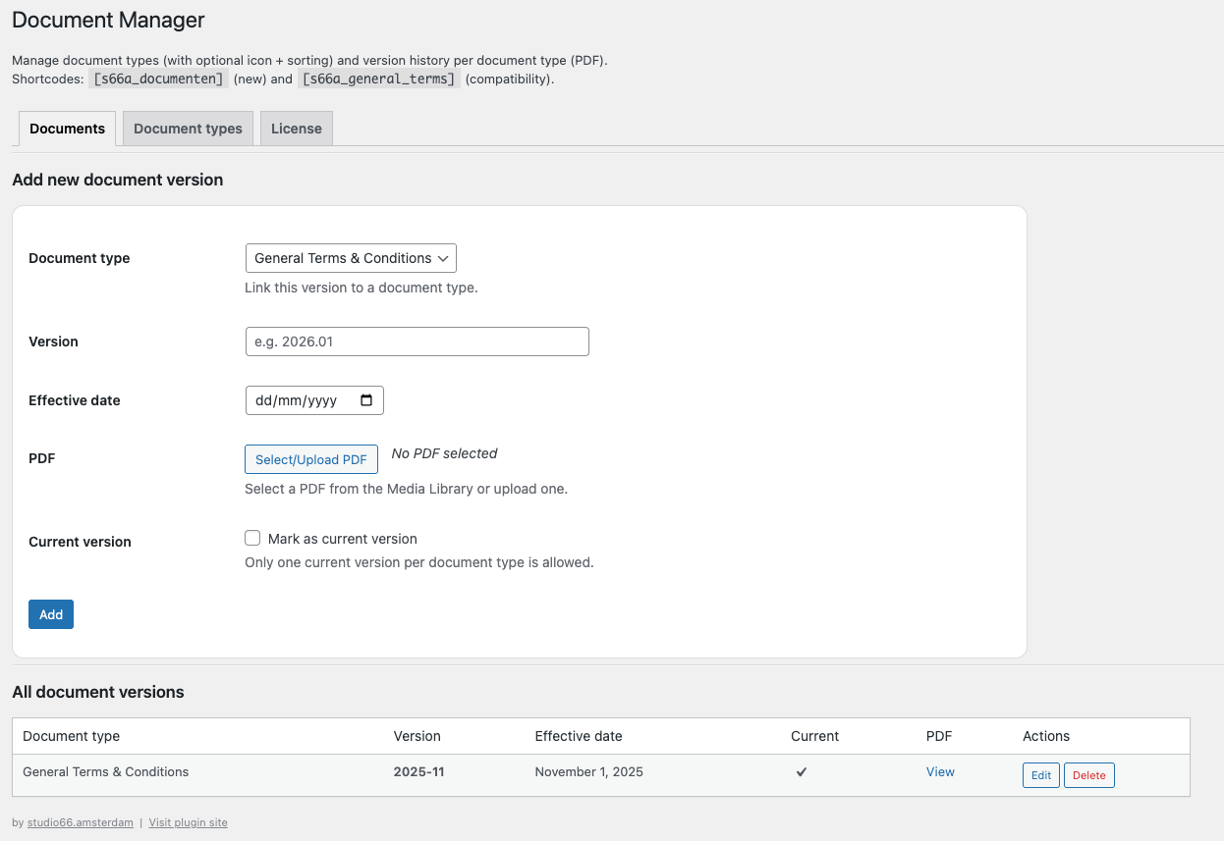
Version history — Every document you upload is stored with a version number and effective date. You decide which version is “current”; older versions remain accessible in the archive. This gives you a complete, transparent audit trail.
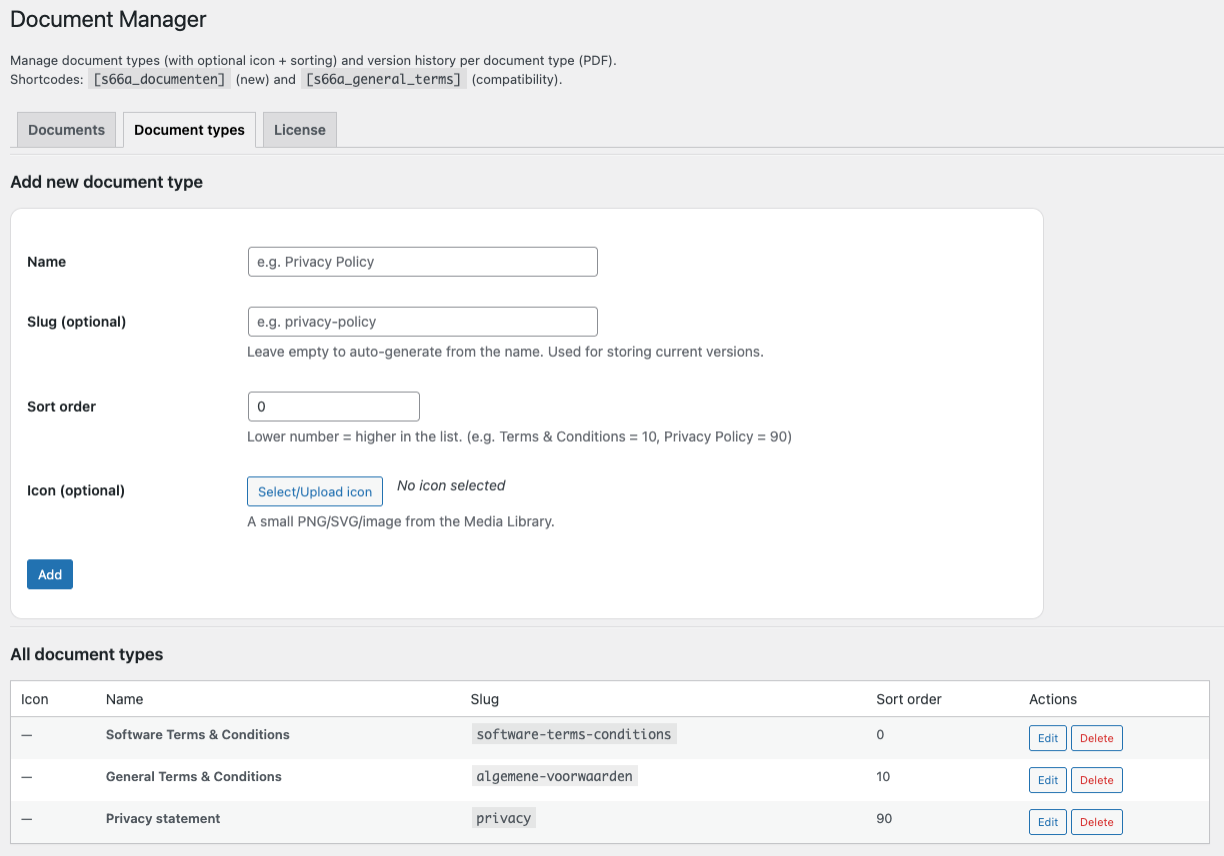
Document types — Organise documents into named types (e.g. Terms & Conditions, Privacy Policy, Guarantee). Each type has an optional slug, sort order, and icon. You can have as many types as you need.
Gutenberg block — Insert the Document Manager block anywhere in the WordPress editor. A live server-side preview updates instantly as you adjust settings in the sidebar.
Shortcode support — Prefer classic themes or page builders? Use General Terms & Conditions
Version Effective date PDF 2025-11 Current 1 November 2025 Download PDF
Table and card layout — Choose between a clean table layout or a responsive card grid. The card layout supports 1 to 4 columns, collapsing to a single column on mobile automatically.
License management — Activate and manage your plugin licence directly from the admin panel. The licence tab shows masked key, expiry date, and a one-click deactivation button.
Multilingual ready — Ships with translation files for Dutch (nl_NL), English US (en_US), and English UK (en_GB). Fully compatible with Loco Translate for custom translations.
Installation
- Download the plugin ZIP file.
- In your WordPress admin, go to Plugins → Add New → Upload Plugin.
- Upload the ZIP and click Install Now, then Activate.
- The Document Manager menu item will appear in the left-hand admin navigation.
Configuration
Step 1 — Add document types
Go to Document Manager → Document types and create one or more types. For example:
- Terms & Conditions (slug:
terms-conditions, sort order:10) - Privacy Policy (slug:
privacy-policy, sort order:20)
Each type can have an optional icon (PNG, SVG, or any image from your Media Library) and a sort order that controls the display sequence.
Step 2 — Upload document versions
Go to Document Manager → Documents and add a new version. Fill in:
- Document type — link this version to one of your types
- Version number — e.g.
2026.01orv3.2 - Effective date — when this version came into force
- PDF — select or upload the PDF from the Media Library
- Current version — tick this to mark it as the active version for its type
Only one version per type can be marked as current at any time.
Step 3 — Activate your licence
Go to Document Manager → Licence, enter your licence key from plugins.studio66.amsterdam, and click Save & activate.
Publishing Documents — Gutenberg Block
In the WordPress block editor, search for “Document Manager” (or browse the studio66 category) and insert the block. The block sidebar offers three panels:
Filters panel
- Document type — show all types or filter to a single type by selecting it from the dropdown.
- Current version only — when enabled, only the active version of each type is displayed, hiding the full version history.
Display panel
- Layout — switch between Table (default) and Cards.
- Columns (cards) — when the card layout is active, choose between 1, 2, 3, or 4 columns.
- Heading level — set the document type heading to H2, H3, or H4.
- Show type heading — toggle the document type name as a heading above each group.
Columns panel
- Toggle Version, Effective date, and PDF link columns on or off individually.
A live preview renders inside the editor as you make changes — no need to save and preview separately.
Publishing Documents — Shortcode
Use the General Terms & Conditions
Version Effective date PDF 2025-11 Current 1 November 2025 Download PDF
| Parameter | Values | Default | Description |
|---|---|---|---|
type |
type slug | (all) | Filter to a specific document type |
current_only |
0 / 1 |
0 |
Show only the current version per type |
layout |
table / cards |
table |
Display layout |
columns |
1–4 |
2 |
Number of card columns (cards layout only) |
heading |
h2 / h3 / h4 |
h2 |
Heading level for type names |
show_heading |
0 / 1 |
1 |
Show document type headings |
show_version |
0 / 1 |
1 |
Show version column |
show_date |
0 / 1 |
1 |
Show effective date column |
show_link |
0 / 1 |
1 |
Show PDF download link |
Reviews
There are no reviews yet.